Convert DWG to PDF without AutoCAD
Need to send a drawing to someone who doesn't have CAD, or print it? Omia opens the .dwg or .dxf on your Mac or PC and exports a vector PDF in a couple of clicks. Nothing is uploaded.
Free to view · 5 free saves, conversions & pro-format opens · then $19.90 one-time · no subscription · files never leave your computer
What you can do
- Export .dwg and .dxf drawings (up to 64 MB) to PDF
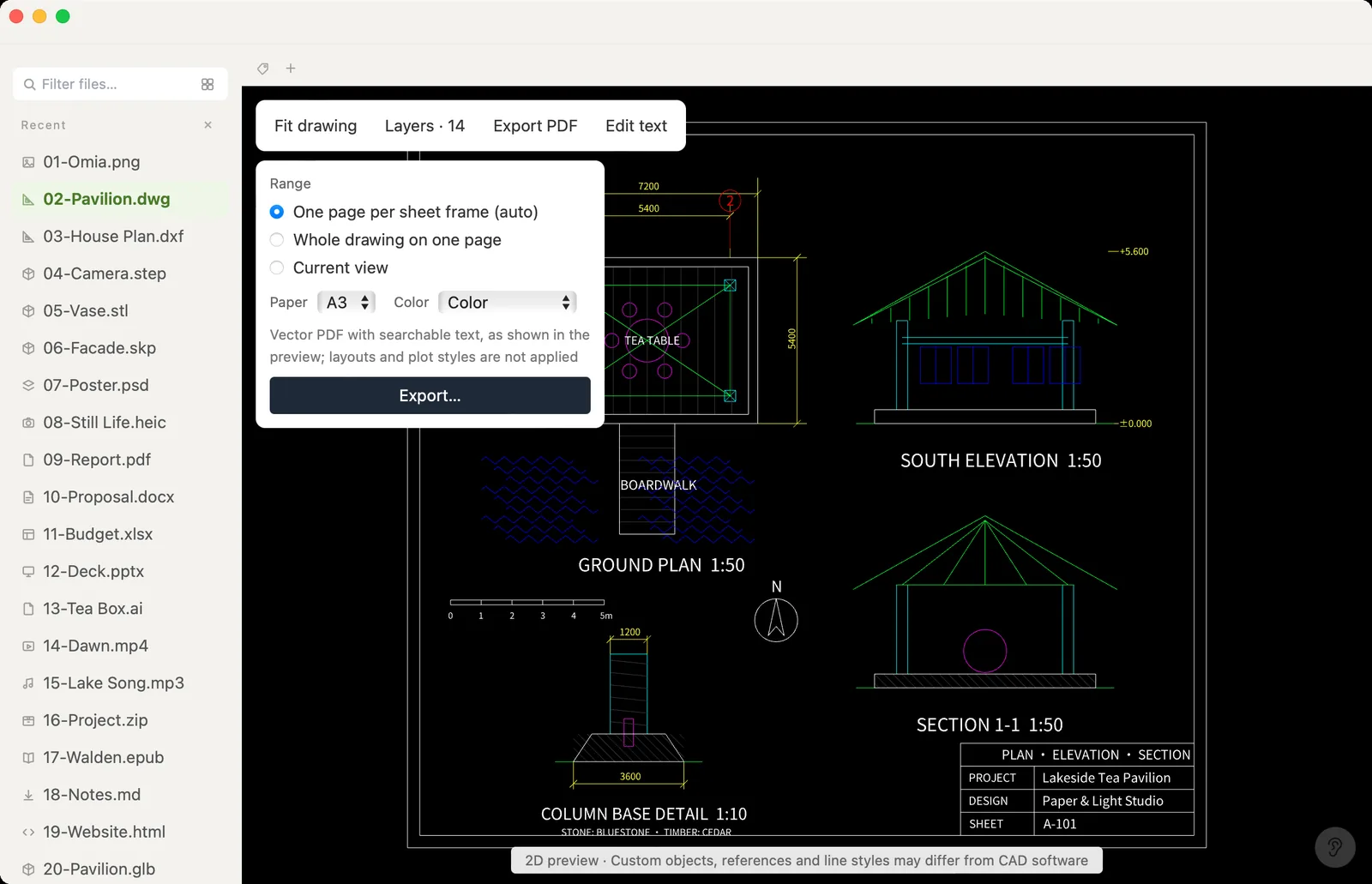
- One page per sheet frame: Omia finds the title-block frames laid out side by side in model space and puts each on its own page; if it finds none, the whole drawing goes on one page
- Or choose the whole drawing on one page, or just the area you're looking at
- Paper sizes A4 to A0, in color or black & white
- Vector output: lines, fills and text stay sharp at any zoom; text is real text you can select and search
- What you see is what you get: colors and hidden layers match the preview
- Need to fix a label or a number first? Click it on the drawing, change it, then export
- Works fully offline — the drawing never leaves your computer
Worked example: a pavilion drawing
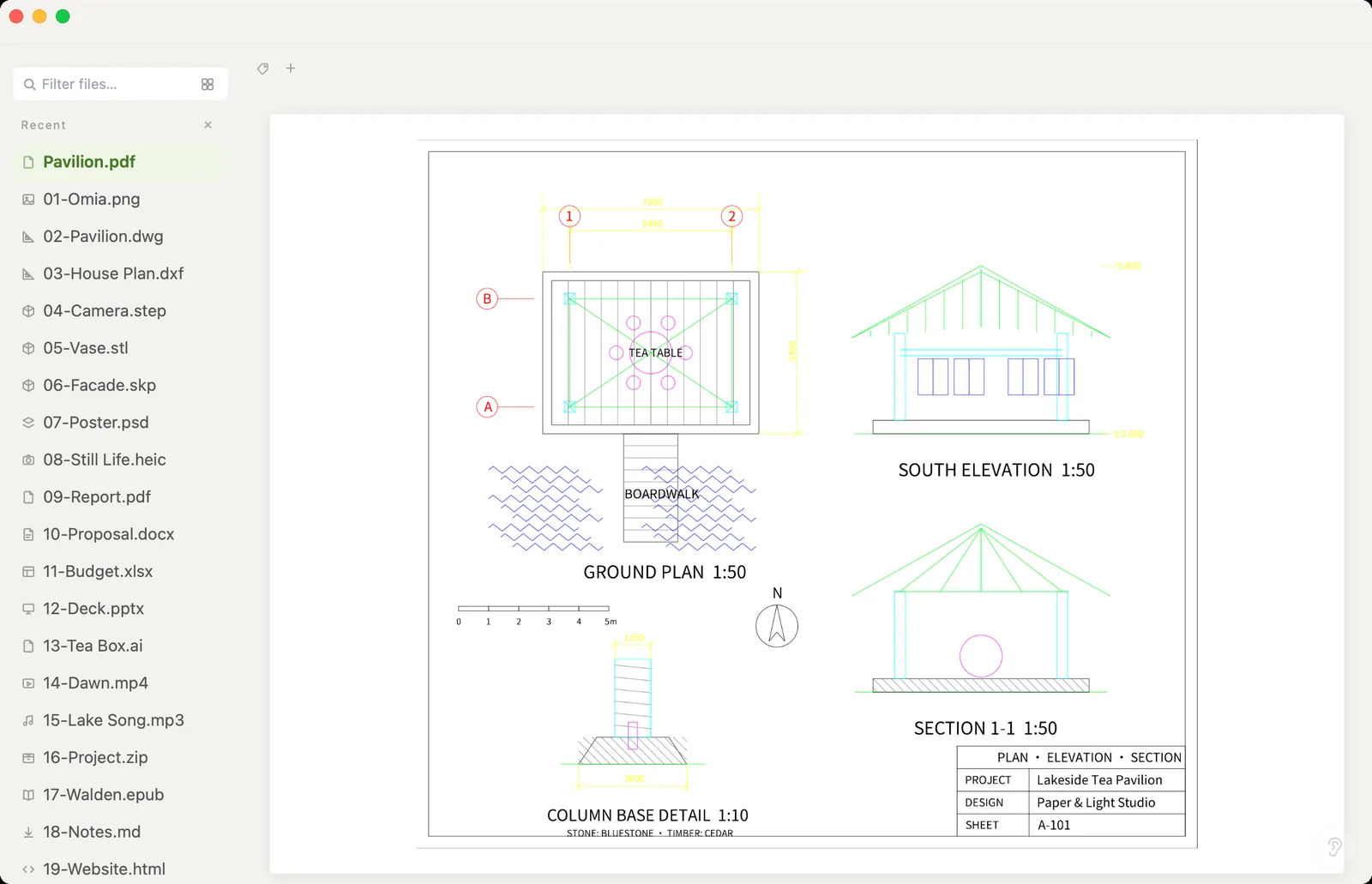
The screenshot above shows our Lakeside Tea Pavilion demo drawing, exported on an Intel MacBook Air using Omia 0.9.16 on October 7, 2026. We checked the saved PDF again on October 10.
- Input:
02-Pavilion.dwg, 25,015 bytes. - Output: one A3 landscape page, 38,183 bytes (about 37 KiB).
- Vector check: 202 vector paths and no embedded raster images in this PDF.
- Text check: “GROUND PLAN” and “Lakeside Tea Pavilion” are extractable and each has one search match.
The plan, elevation, section and title block remain on the same page. This demonstrates vector output and searchable labels for this file; it is not a conversion-speed benchmark or a guarantee for every CAD drawing.
To check your own export, reopen the PDF, inspect every page and try selecting a known label. If you also need the labels as a text file, follow the PDF text extraction guide.
What it doesn't do
We'd rather you know before downloading.
- No paper-space layouts — the PDF is made from model space, as shown in the preview
- Plot styles (CTB/STB) and line weights are not applied
- Custom objects, external references and some line types may look different from AutoCAD
- Files larger than 64 MB won't open
- No batch conversion of many files at once
How to open DWG files
- Download Omia and install it (Mac or Windows)
- Open the .dwg or .dxf (double-click it, or drag it onto the Omia window)
- Click Export PDF at the top left, pick the range, paper size and color, then Export… and choose where to save — the PDF opens right away
Why a local viewer
Most DWG-to-PDF converters are websites: you upload the drawing, wait, and download a PDF. For a client's plans, a tender package or anything under NDA, that upload is the problem. Omia does the conversion on your own machine, offline, and gives you a vector PDF rather than a blurry image. In our test, a structural drawing with 12 sheet frames became a 12-page PDF of about 3 MB in roughly 1.5 seconds.
How Omia compares
| Omia | Online converter | AutoCAD / DWG TrueView | |
|---|---|---|---|
| Drawing leaves your computer | No | Yes, it's uploaded | No |
| Works offline | Yes | No | Yes |
| Runs on Mac | Yes | In the browser | AutoCAD for Mac only (DWG TrueView is Windows-only) |
| One page per sheet frame, automatically | Yes | Varies | Via layouts you set up |
| Plot styles and line weights | No | Varies | Yes |
| Cost | 5 free uses, then $19.90 once | Usually free, with limits | Subscription (AutoCAD) / free (TrueView, Windows) |
FAQ
How do I convert a DWG to PDF without AutoCAD?
Open the DWG in Omia (Mac or Windows) and click Export PDF. Pick one page per sheet frame, the whole drawing or the current view, choose the paper size, and save.
Can I convert DWG to PDF on a Mac?
Yes. Omia runs on macOS 11 or later on Apple Silicon and Intel Macs, and also on Windows 10 and 11.
Is the PDF vector or an image?
Vector. Lines and fills are drawn as vectors and the text is embedded as real text, so it stays sharp when zoomed and you can search it.
Does it handle drawings with several sheets?
Yes. If the drawing has several title-block frames side by side in model space, Omia detects them and puts each on its own page.
Does it use my layouts and plot styles?
No. The PDF follows the model-space preview: paper-space layouts, plot styles and line weights are not applied.
Are my drawings uploaded?
No. The conversion runs entirely on your computer.
Is it free?
Viewing files is free forever, with no sign-up. Saving edits, converting, and opening pro formats (DWG, STEP, SketchUp, CorelDRAW) each come with 5 free uses; after that it's a one-time $19.90 licence, no subscription.
Omia also opens: 5 ways to open DWG on Mac · DWG viewer · DXF · STEP · PDF · 150+ formats in one app