How to extract text from a PDF offline
Need the words from a PDF for notes, editing or a Markdown workflow? Omia saves a new text file on your Mac or Windows PC. The PDF stays on your computer.
By Xiaoer, Omia's developer · Updated October 10, 2026
Free to view, no sign-up · 5 free uses of pro features · Then $19.90 once
1. Check that the PDF contains text
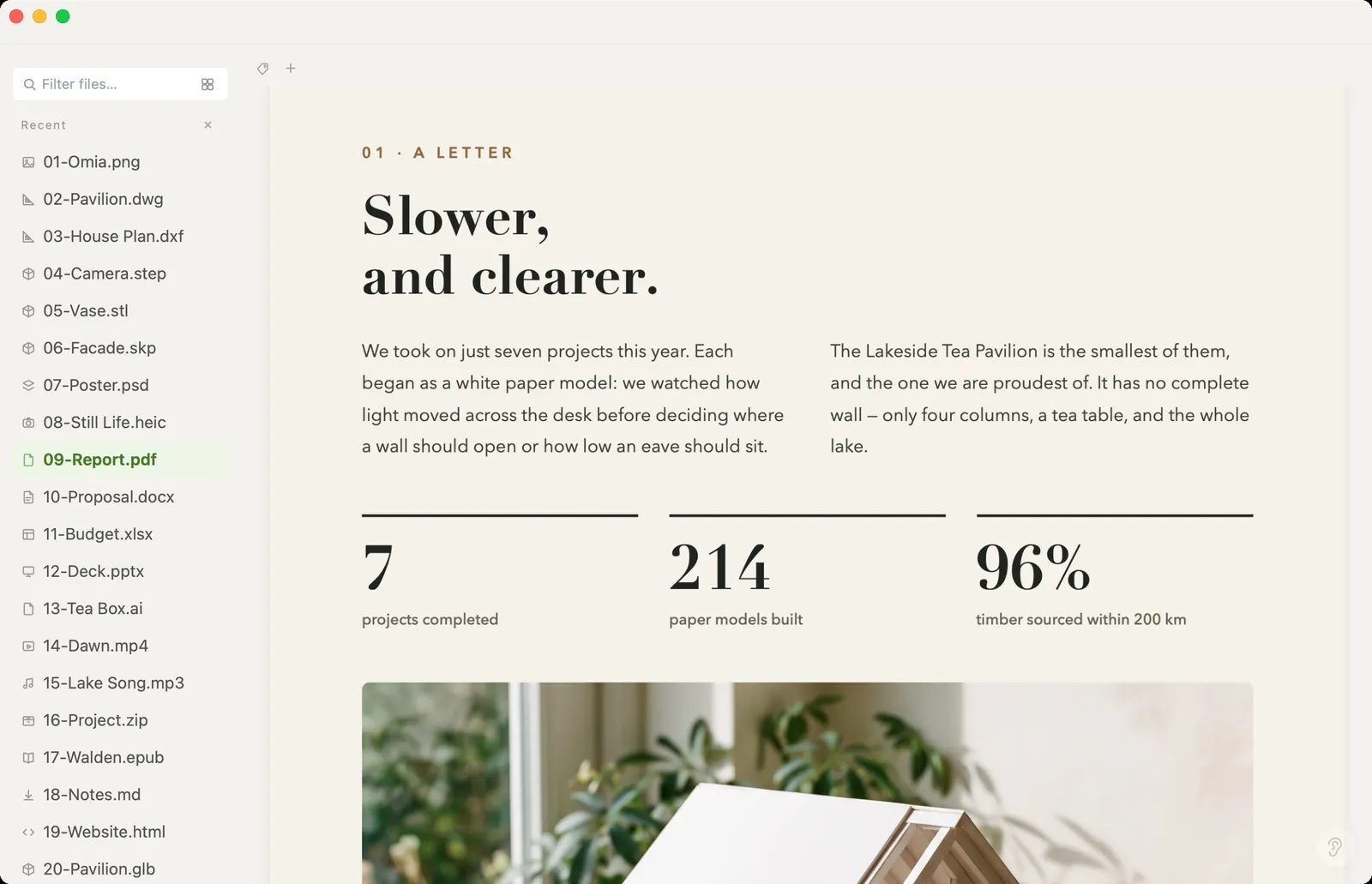
Open the PDF and try selecting a sentence. If you can select individual words, the page probably contains a text layer. A scan may show readable words while storing only an image of them.
Omia does not perform OCR. If the pages are images with no text layer, ask for the original Word or digital PDF, or use an OCR tool first. A PDF can also mix text pages and scanned pages, so check more than the first page.
2. Save as plain text or Markdown
- Install Omia using the install guide, then drag the PDF onto its window.
- Move the pointer over the window to show its controls. Open Save As.
- Choose Plain text for a .txt file, or Markdown (extracted text) for a .md file.
- Choose a filename and location in the save dialog, then save.
The export is a new file. It does not overwrite the PDF. Open the saved .txt or .md in Omia when you want to read or edit the extracted content.
3. Choose the output for your next task
- Plain text: useful for copying words into notes, email or another editor.
- Markdown: useful for a .md workflow. Headings, paragraphs and lists may be inferred from the PDF; check the result before using it.
- Keep the PDF: when page layout, tables, diagrams or a drawing's appearance matter. Text extraction does not preserve those visual relationships.
For a scan that you only need to share as pictures, Save As → PNG pages creates a ZIP. It exports up to the first 50 pages and adds a README for longer documents. Image export is separate from text recognition.
4. Review the text against the original
Compare the beginning, middle and end of the saved text with the PDF. Look for missing words, unexpected reading order, repeated page headers, column mixing and table values separated from their labels. Correct the extracted file before sharing it or passing it to an AI tool.
As a concrete example, our pavilion DWG export contains searchable labels including “GROUND PLAN” and “Lakeside Tea Pavilion”. We checked that existing PDF on October 10, 2026. Those labels can be extracted, but text alone does not reproduce the floor plan, dimension lines or spatial arrangement.
If the saved text is empty or incomplete
- Image-only pages: use OCR first; saving them as Markdown cannot create a text layer.
- Some pages work, others do not: check whether the PDF mixes scanned and digital pages.
- Garbled words: the PDF may have unusual font encoding. Compare against the original and ask the sender for a text export if necessary.
- Tables or columns are rearranged: review the reading order, or use the original document when exact structure is required.
FAQ
How do I extract text from a PDF without uploading it?
Open the PDF in Omia on Mac or Windows. Use Save As, choose Plain text or Markdown (extracted text), and save a new file. Extraction runs locally and keeps the original PDF.
Why does my scanned PDF produce no text?
A scan can contain only page images, with no text layer to extract. Omia does not perform OCR. Ask for the original digital document or use an OCR tool before extracting the text.
Does PDF to Markdown preserve the original layout?
No. It extracts text and may infer headings, paragraphs and lists. Reading order and formatting need checking, especially for columns, tables and CAD labels. It does not reproduce the original PDF page layout.
Can I edit the extracted text?
Yes. Open the saved .txt or .md file in Omia to edit it. This edits the extracted file, not the original PDF.
Can I save PDF pages as images instead?
Yes. Save As offers PNG pages in a ZIP. It exports up to the first 50 pages; for a longer PDF, the ZIP contains a README explaining the limit. This does not recognize text in the images.
Is PDF text extraction free to try?
Viewing is free and needs no sign-up. Saving, converting and opening pro formats like DWG and STEP come with 5 free uses each; after that a licence costs $19.90 once, with no subscription.
Related: PDF viewer · Markdown viewer and editor · Word documents · DWG to vector PDF